Your first day. Then just talk to it.
Four steps to set up. Screens show sample data.
Day one
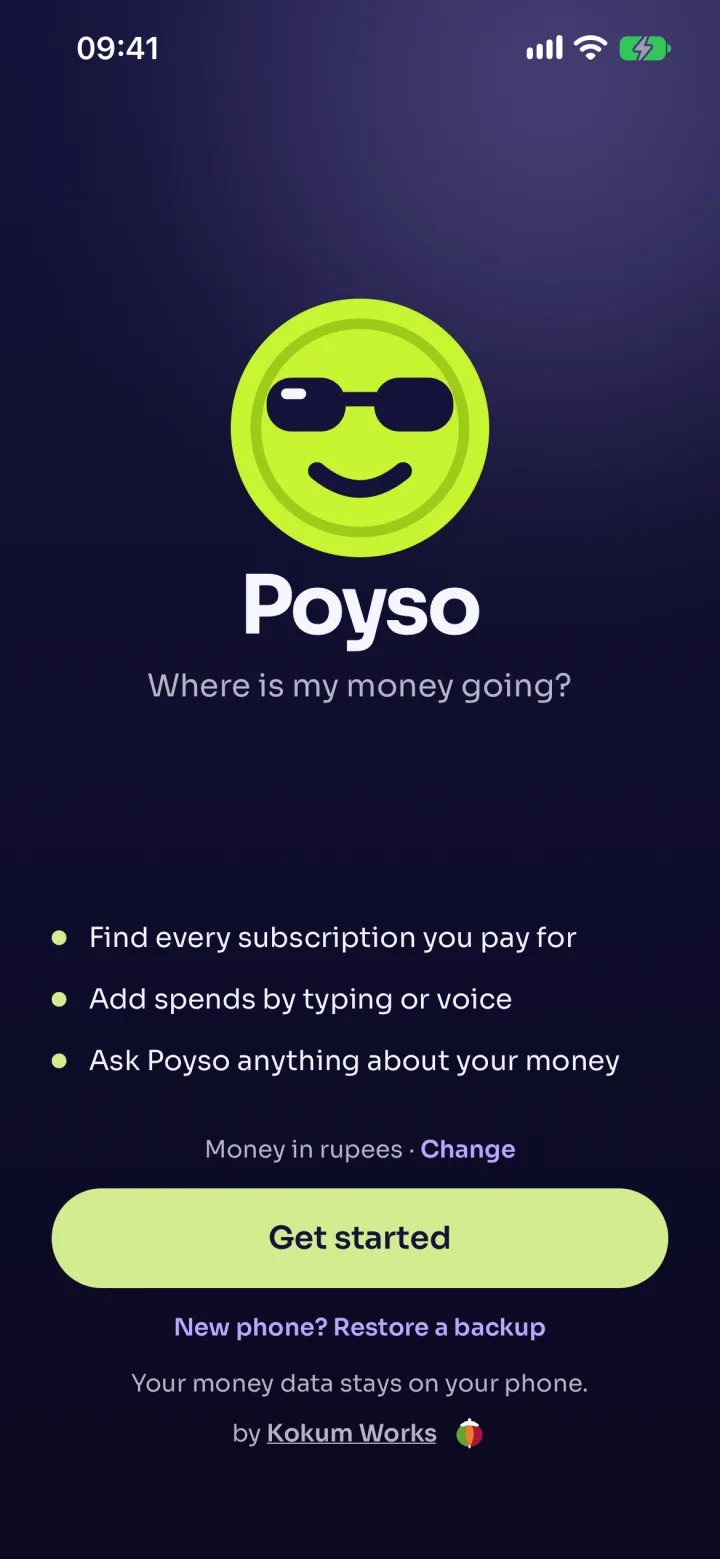
1. Pick your money, and start
Open Poyso, check the currency, and tap Get started. No account, no sign-up, no phone number.
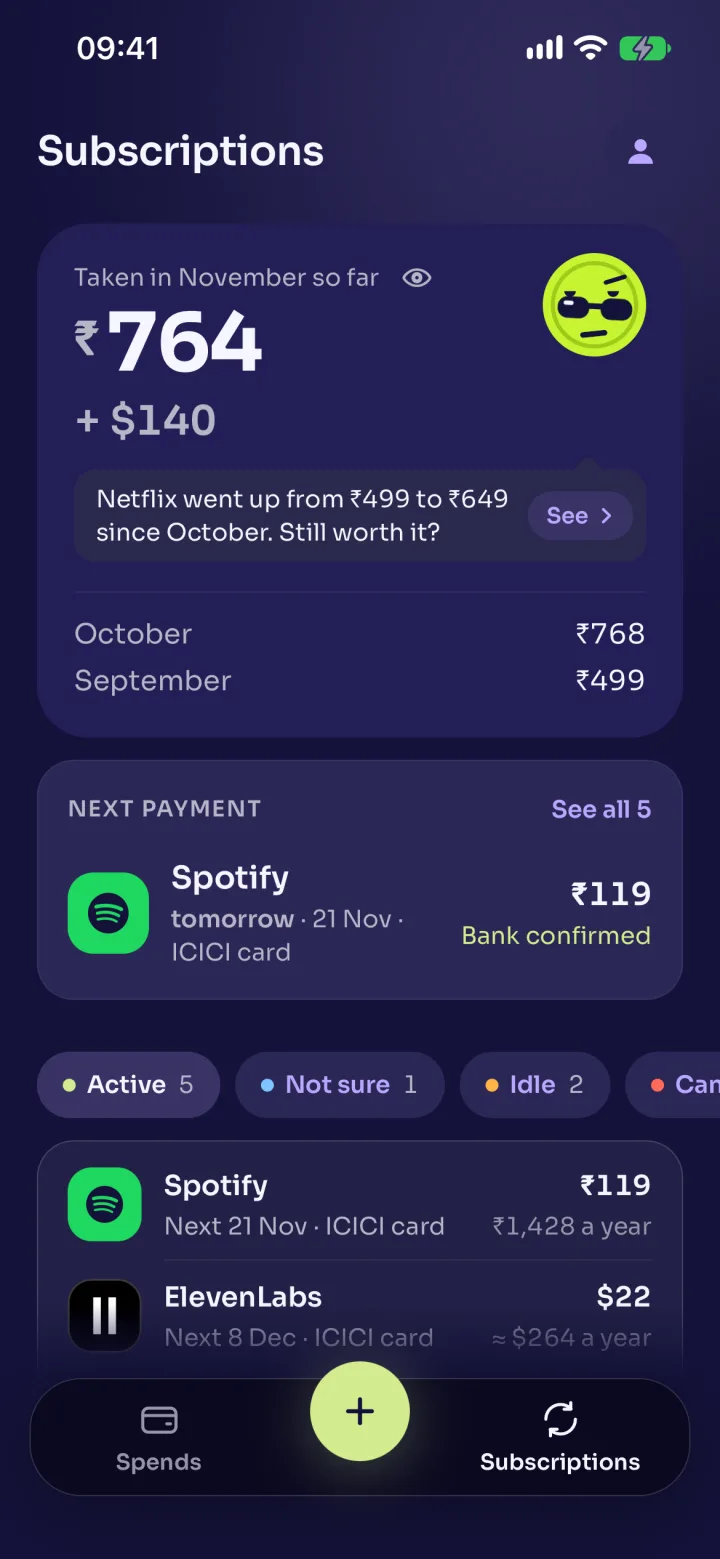
2. Connect Gmail, if you like
On Subscriptions, connect Gmail. Google asks if Poyso may read your email: read only, never send or delete. Poyso searches for auto-pay emails and reads them on your phone. Rather not? Add auto-pays yourself.
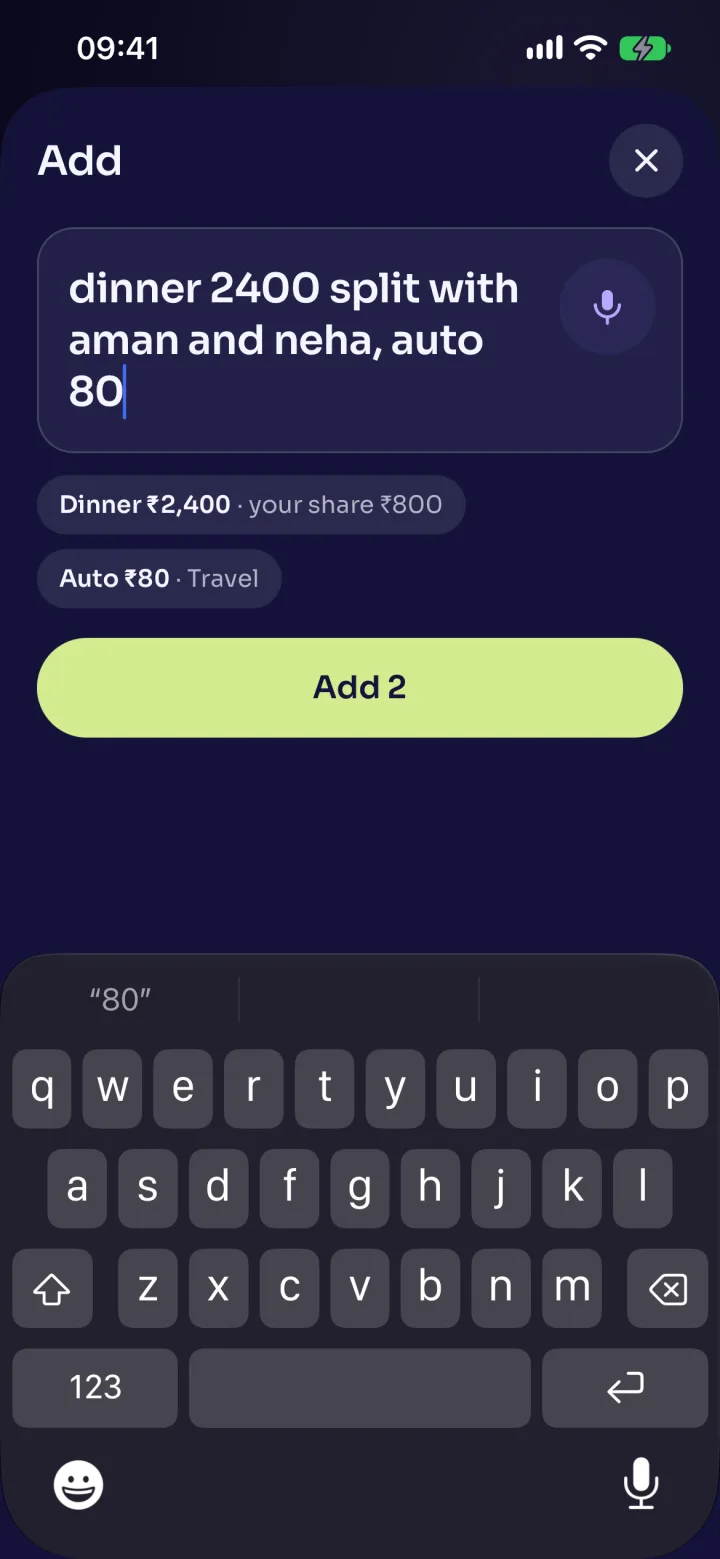
3. Add your first spend
Tap the + and type or say what you spent, the way you'd tell a friend. Check what Poyso read, then tap Add.
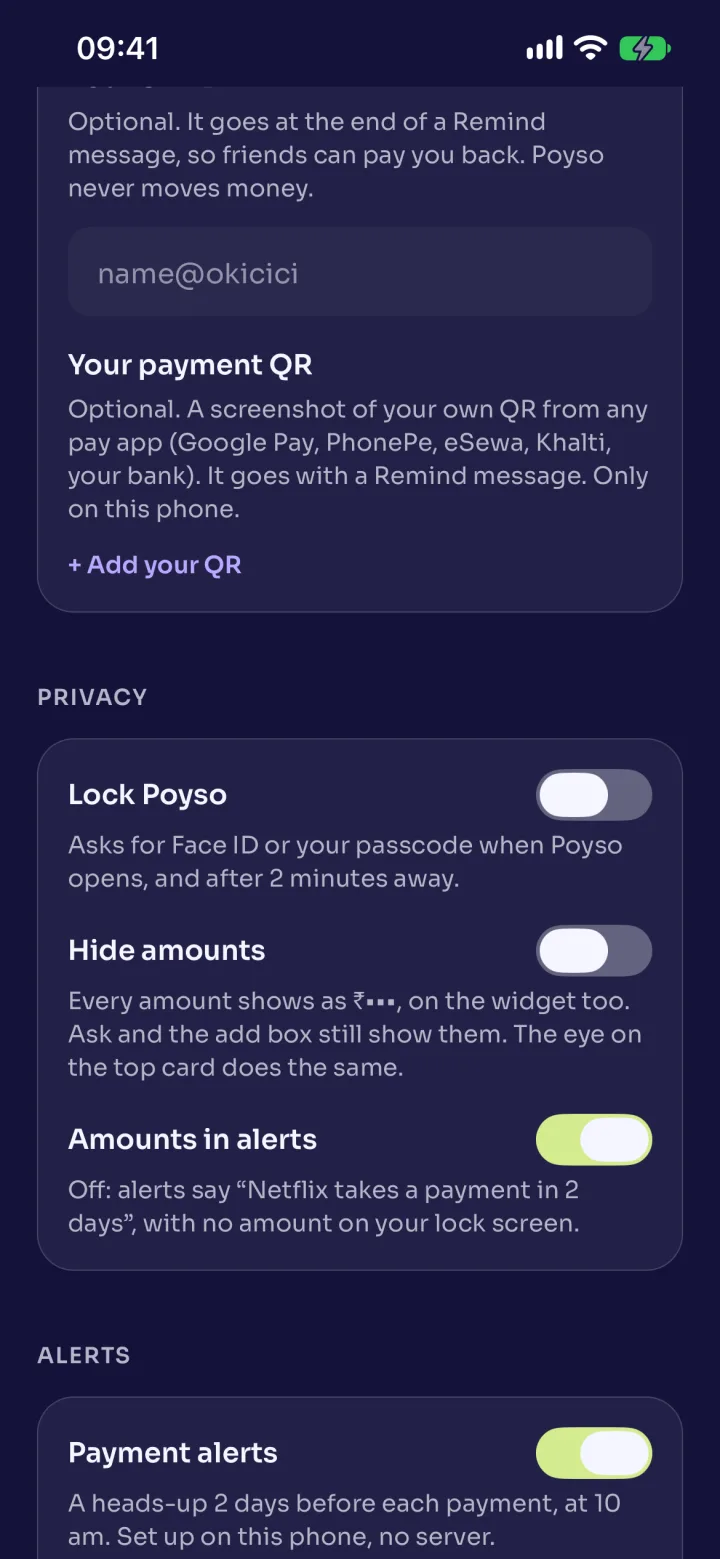
4. Make it yours
In your profile: lock Poyso, hide amounts, pick when alerts come, and choose Poyso's mood: Savage, Normal or Sweet.
Talk like you talk.
Type these, or tap the mic and say them. Commas split one line into many spends.
- “Swiggy 450, auto 80”
- Two spends: Food ₹450 and Travel ₹80
- “yesterday zomato 520”
- Food ₹520, on yesterday's date
- “dmart groceries 2340”
- Groceries ₹2,340
- “dinner 2400 split with aman and neha”
- Your share ₹800. Aman and Neha owe you ₹800 each
- “rudra ko 500 udhaar diya”
- Rudra owes you ₹500
- “borrowed 300 from neha”
- You owe Neha ₹300
- “rudra gave back 1000”
- Rudra paid you back ₹1,000
- “salary 85000”
- Money in: ₹85,000
Friend names are from the sample month: Aman, Neha and Rudra.
Ask Poyso.
Type in the box on Spends, or tap the mic. Poyso works out the answer on your phone.
- “how much on food this month?”
- “how much on swiggy”
- “what did i spend last week”
- “where did my money go”
- “biggest spend this month”
- “who owes me”
- “how am i doing on my challenge”
- “what's left”
Good to know
Cancelling an auto-pay
Do both: cancel on the company’s page, then remove the e-mandate in your bank’s app or net banking. Poyso shows you how for each one.
Changing phones
In your profile, tap Back up now: one file, locked with a password you choose. On the new phone, tap “New phone? Restore a backup”. A lost password can’t be reset.
Fixing a spend
Tap any spend to edit it, delete it, or make it repeat each month.
Leaving
Disconnect Gmail from your profile, or delete all your data. Then remove the app.